How to Password Protect a PDF — The 2026 Step-by-Step Guide
In our digital-first world, keeping sensitive documents safe is no longer a luxury—it is a necessity. Whether you are dealing with financial statements, legal contracts, or confidential project files, learning how to password protect a PDF is the most effective way to prevent unauthorized access. By encrypting your files, you ensure that only those with the correct password can view the contents, providing peace of mind whether you are sending files via email or storing them in the cloud.
In this 2026 guide, we will walk you through the simplest methods to secure your data using CrazyDocument.
Why You Should Password Protect Your PDFs
Data breaches and accidental leaks occur every day. When you share a PDF without encryption, anyone who gains access to the file can open, copy, or distribute your private information. Password protection adds a critical layer of defense, effectively locking your document behind a gate that only you and your chosen recipients can open.
How to Password Protect a PDF with CrazyDocument
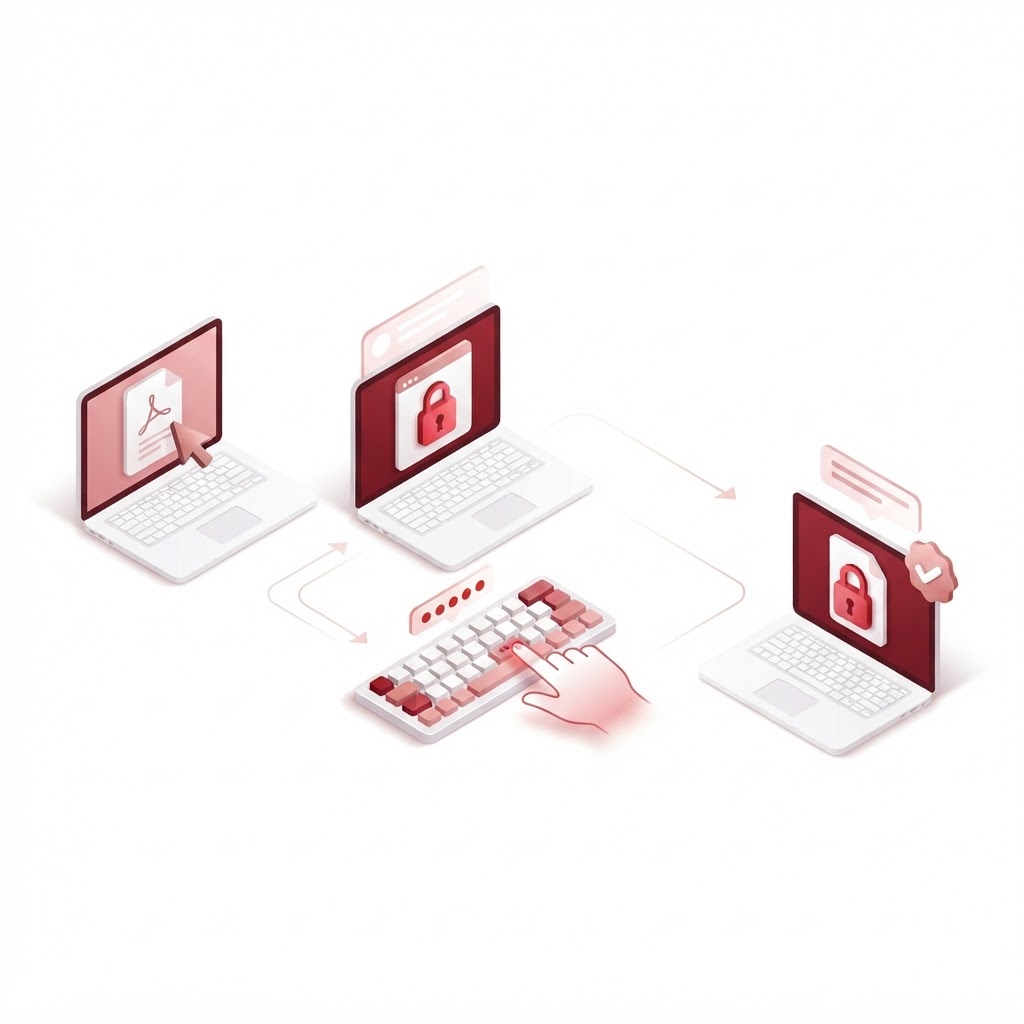
Securing your file takes only a few seconds. Follow these steps to use the Protect PDF tool at CrazyDocument:
- Visit the Protect PDF page on CrazyDocument.
- Click the "Select File" button or drag and drop your PDF into the browser window.
- Enter a strong, unique password that you will share securely with the intended recipient.
- Click "Encrypt PDF" to process the file.
- Download your newly protected document immediately.
Can I Remove Password Protection from a PDF?
Yes. If you are the owner of the document and no longer need the encryption, you can easily remove it. If you find your document is too large after adding security, you can Compress PDF to make it easier to share, or Merge PDF files if you need to combine multiple protected documents into one secure bundle.
Best Practices for Creating Strong Passwords
Encryption is only as good as the password you choose. Avoid obvious choices like birthdates or dictionary words. Instead, use a mix of uppercase and lowercase letters, numbers, and symbols. Ideally, use a passphrase that is at least 12 characters long.
Frequently Asked Questions
Is it safe to upload my documents to CrazyDocument?
Yes. CrazyDocument prioritizes user privacy. Files uploaded to our platform are processed securely and deleted automatically from our servers after the task is completed.
Can I edit a PDF after I have password protected it?
If you need to make changes, you will first need to unlock the file. Once unlocked, you can use our PDF Editor to make modifications before re-applying the security settings.
Will password protection prevent people from printing my PDF?
When you use the Protect PDF tool, you can often set permissions to restrict specific actions, such as printing, editing, or copying text, depending on the level of encryption applied.
Start Now
Don't leave your sensitive information exposed. Take control of your document security today by using our professional-grade tools. Visit Protect PDF to start securing your files instantly.