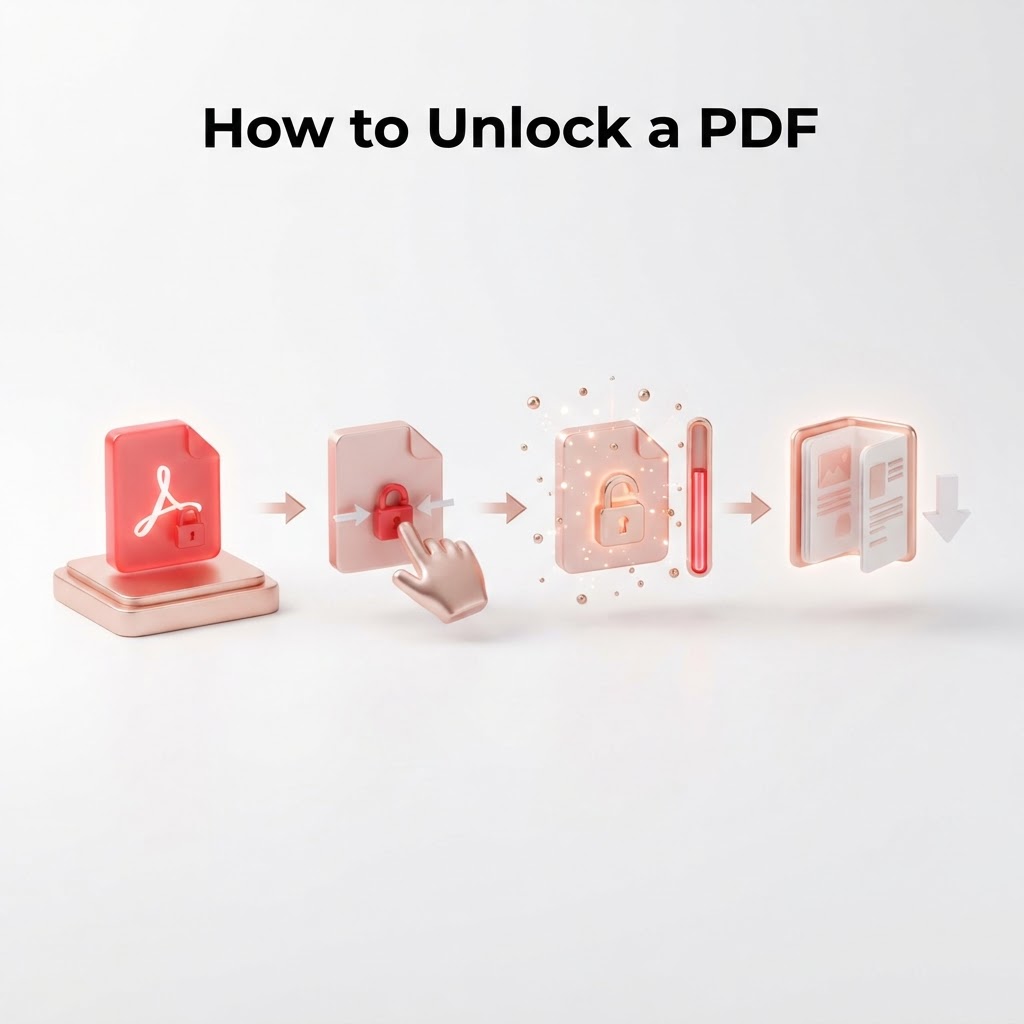
How to Unlock a PDF — The 2026 Step-by-Step Guide
Facing a password-protected document can be incredibly frustrating, especially when you need to access vital information immediately. If you have been searching for how to unlock a PDF, you are certainly not alone. Whether you forgot the password to your own tax returns or a colleague sent you a file without the access key, understanding the correct, secure, and efficient methods to remove restrictions is essential. In this 2026 guide, we will walk you through everything you need to know about removing security features from your digital files.
Understanding PDF Security
PDFs are widely used because they are secure. Security often comes in two forms: User passwords (which prevent opening the file) and Owner passwords (which prevent editing, printing, or copying text). If you are looking to unlock a PDF, you must first identify which type of restriction you are dealing with.
How to Unlock a PDF Online with CrazyDocument
The most efficient way to handle locked files is through a trusted, web-based platform. CrazyDocument provides a seamless experience for those who need to regain access to their documents without downloading risky software.
Step-by-Step Instructions
- Visit the CrazyDocument protect page if you wish to see how security is applied, or head directly to our unlocking utility.
- Upload your file: Drag and drop your locked PDF into the upload area.
- Verify ownership: Depending on the file's encryption level, you may need to input the original password.
- Process: Click the 'Unlock' button to remove the restrictions.
- Download: Once the process is complete, save your new, unrestricted file to your device.
Can You Unlock a PDF Without a Password?
If you have forgotten the password for a file you own, there are various ways to regain access. If the document has 'Owner' restrictions, such as printing or editing locks, these are often easier to bypass. However, for 'User' password protection, you generally need the original password to ensure the security integrity of the data remains intact.
| Feature | User Password | Owner Password | | :--- | :--- | :--- | | Prevents Viewing | Yes | No | | Prevents Editing | Yes | Yes | | Prevents Printing | Yes | Yes |
Common Reasons to Unlock a PDF
- Editing: You need to fix a typo or update information using our PDF Editor.
- Merging: You need to combine multiple documents using Merge PDF files.
- Formatting: You need to Rotate PDF pages or Rearrange PDF pages for a presentation.
- Data Extraction: You need to Convert PDF to Excel or Word to analyze data.
Frequently Asked Questions
Is it legal to unlock a PDF?
Yes, provided you own the document or have explicit permission from the document owner to modify it. Never attempt to remove security from files you do not have the right to access.
Will unlocking a PDF damage the quality of the file?
When using CrazyDocument, the file's structural integrity, layout, and image resolution remain exactly as they were in the original version.
Does CrazyDocument store my files?
We prioritize your privacy. Files uploaded to our servers are processed securely and deleted automatically after a short period to ensure your data stays private.
Can I unlock a scanned document?
If the document is a scan, you may need to use our OCR tool after unlocking it to make the text editable and searchable.
Next Steps for Your Document Workflow
Once your PDF is unlocked, you might find that you need to perform further adjustments. Perhaps you need to Compress PDF to make it easier to email, or maybe you need to Add page numbers for a professional report. At CrazyDocument, we offer a comprehensive suite of tools designed to make your document management as simple as possible.
Start Now
Ready to get back to work? Click here to use our secure unlocking and management tools and gain full control over your documents today.