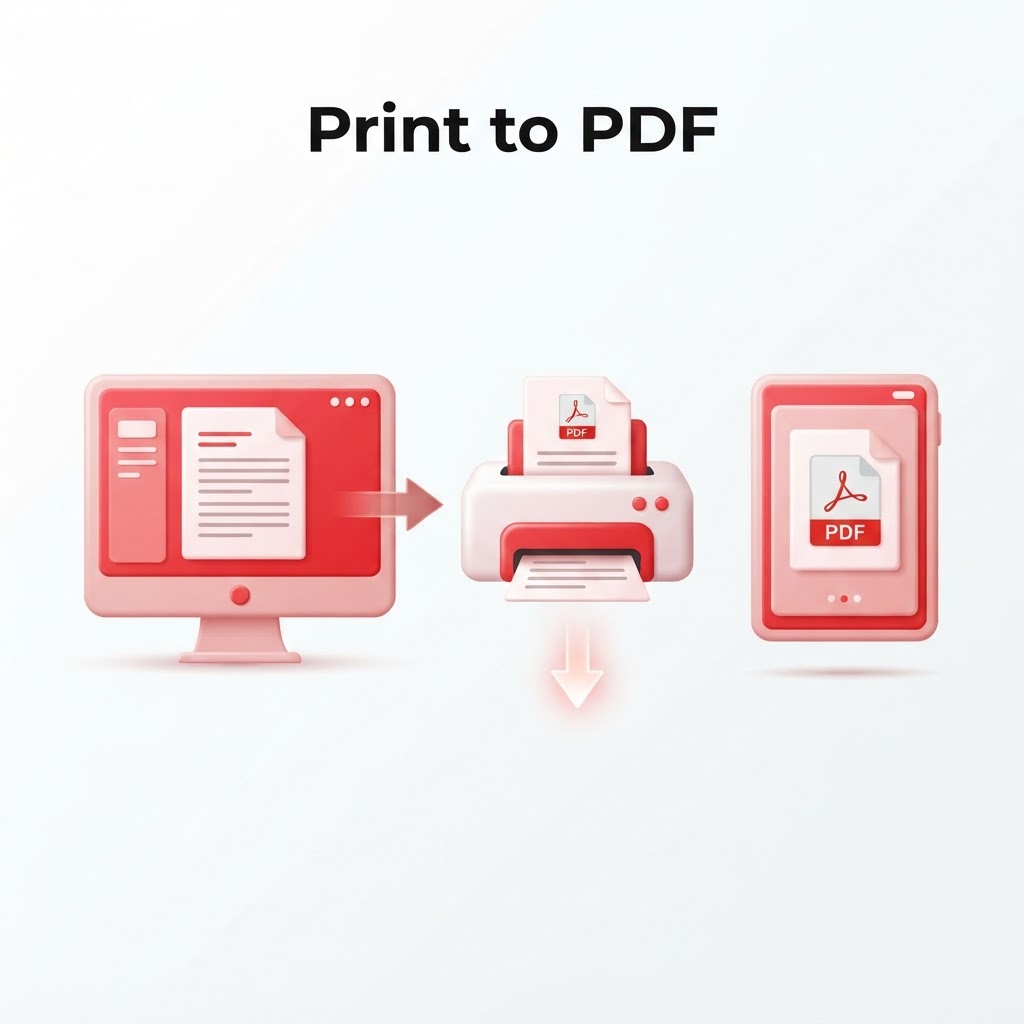
How to Print to PDF — The 2026 Step-by-Step Guide
In our increasingly digital world, understanding how to print to PDF is an essential skill for professionals, students, and casual users alike. Whether you need to save a webpage for offline reading, archive an email, or secure a document for sharing, the "Print to PDF" function is your best friend. This guide will walk you through the process across all major platforms, ensuring you can turn any file into a portable document format file in seconds.
What Does "Print to PDF" Actually Mean?
"Print to PDF" is a virtual printing process. Instead of sending data to a physical printer sitting on your desk, your operating system creates a digital file that preserves the exact layout, fonts, and images of your document. It effectively freezes the document's state, ensuring that it looks identical regardless of the device used to view it.
How to Print to PDF on Windows
Windows has built-in support for PDF creation, making it incredibly simple to save documents without third-party software.
- Open the document or webpage you wish to save.
- Press
Ctrl + Pon your keyboard to open the Print dialog. - In the "Printer" dropdown menu, select "Microsoft Print to PDF."
- Click "Print."
- Choose the destination folder and name your file, then click "Save."
How to Print to PDF on macOS
macOS has perhaps the most elegant implementation of PDF printing.
- Open the file or web page.
- Go to
File > Printor pressCmd + P. - Look for the PDF dropdown menu at the bottom of the dialog box.
- Select "Save as PDF."
- Choose your save location and confirm.
How to Print to PDF on Mobile Devices
iOS (iPhone/iPad)
- Open your document and tap the "Share" icon.
- Select "Print."
- When the print preview appears, pinch outwards with two fingers on the preview image.
- This converts it to a PDF. Tap the "Share" icon again to save it to your Files app.
Android
- Tap the three dots (menu) in your browser or app.
- Select "Share" and look for "Print."
- Select "Save as PDF" from the printer list.
Taking Control of Your PDFs with CrazyDocument
Once you have created your PDF, you might find that it needs further adjustments. Perhaps the file is too large, or you need to merge several printouts into one cohesive document. CrazyDocument offers a full suite of professional tools to help you manage your files efficiently:
| Task | Recommended Tool | | :--- | :--- | | Combine documents | /tools/merge | | Edit existing content | /tools/editor | | Reduce file size | /tools/compress | | Add security | /tools/protect | | Extract text | /tools/ocr |
Frequently Asked Questions
Is "Print to PDF" safe?
Yes, it is a local process performed by your operating system, meaning no data is transmitted to an external server during the creation of the file.
Can I edit a PDF after printing it?
If you need to change text or images, you can use the CrazyDocument /tools/editor to make adjustments directly to the file.
Why does my PDF look different than the original?
"Print to PDF" usually captures the print-view of a document. If you need a pixel-perfect conversion of a web page, consider using the /tools/convert-to-pdf tool for more consistent results.
Start Now
Ready to organize your digital workspace? If you have just created a PDF and need to refine it, visit CrazyDocument today to explore our full range of free, powerful PDF tools.