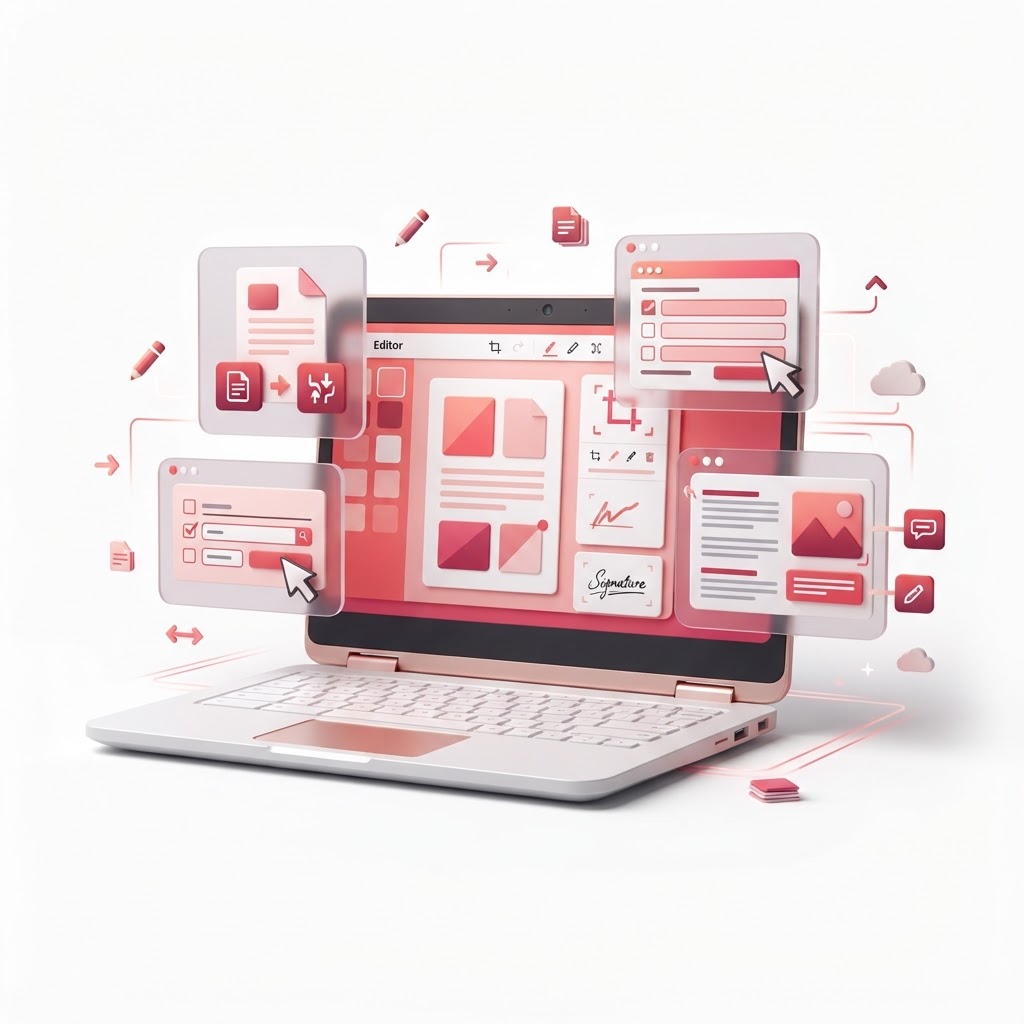
The Best PDF Editors for Chromebook (All Browser-Based)
Chromebooks have revolutionized the way we work, offering a lightweight, cloud-focused experience that is perfect for students and professionals alike. However, because ChromeOS operates differently than Windows or macOS, finding a reliable pdf editor for chromebook can be tricky. You don't need clunky desktop software that eats up your storage space; you need a fast, secure, browser-based solution.
Why Use a Browser-Based PDF Editor?
Because ChromeOS is built for the web, native desktop applications are often unsupported. Browser-based tools provide seamless integration with Google Drive and your files, allowing you to edit documents without ever leaving your browser.
CrazyDocument provides a comprehensive suite of tools designed specifically for the Chromebook user who needs high-performance results instantly.
Essential PDF Tools for Your Workflow
Beyond basic editing, a complete workflow requires specific functions to manage documents efficiently. Here is how you can use CrazyDocument to handle your daily tasks:
- Merge PDF files: Combine multiple research papers or reports into a single file.
- Split PDF: Extract specific pages from a long document for easier sharing.
- Compress PDF: Reduce file sizes to make them easier to email.
- Rotate PDF: Quickly fix documents scanned in the wrong orientation.
| Feature | Benefit | | :--- | :--- | | Speed | No downloads required | | Compatibility | Works on all ChromeOS versions | | Security | Automated file deletion after processing | | Integration | Easy Google Drive imports |
How to Edit PDFs on a Chromebook
Editing a document shouldn't be a hurdle. With the PDF Editor from CrazyDocument, the process is streamlined for simplicity:
- Visit the PDF Editor page.
- Upload your file directly from your Chromebook or Google Drive.
- Add text, images, or shapes using the intuitive toolbar.
- Click 'Apply' to save your changes and download your updated PDF.
Need to extract text from a scan? Use our OCR tool to make your documents searchable and editable in seconds.
Frequently Asked Questions
Can I edit PDFs offline on a Chromebook?
Most high-quality PDF tools require an internet connection to process files securely in the cloud. However, since Chromebooks are "always-on" devices, this ensures your document is processed with maximum security.
Are these tools free to use?
CrazyDocument offers a wide range of free-to-use tools. You can sign your documents or even add page numbers without hidden costs.
Is my data safe?
Yes. We prioritize user privacy. Files are not stored permanently on our servers, ensuring your sensitive information stays private.
Start Now
Stop struggling with incompatible software. Whether you need to rearrange PDF pages or convert files for a presentation, CrazyDocument has everything you need to succeed on your Chromebook. Visit our tool library now to get started for free.