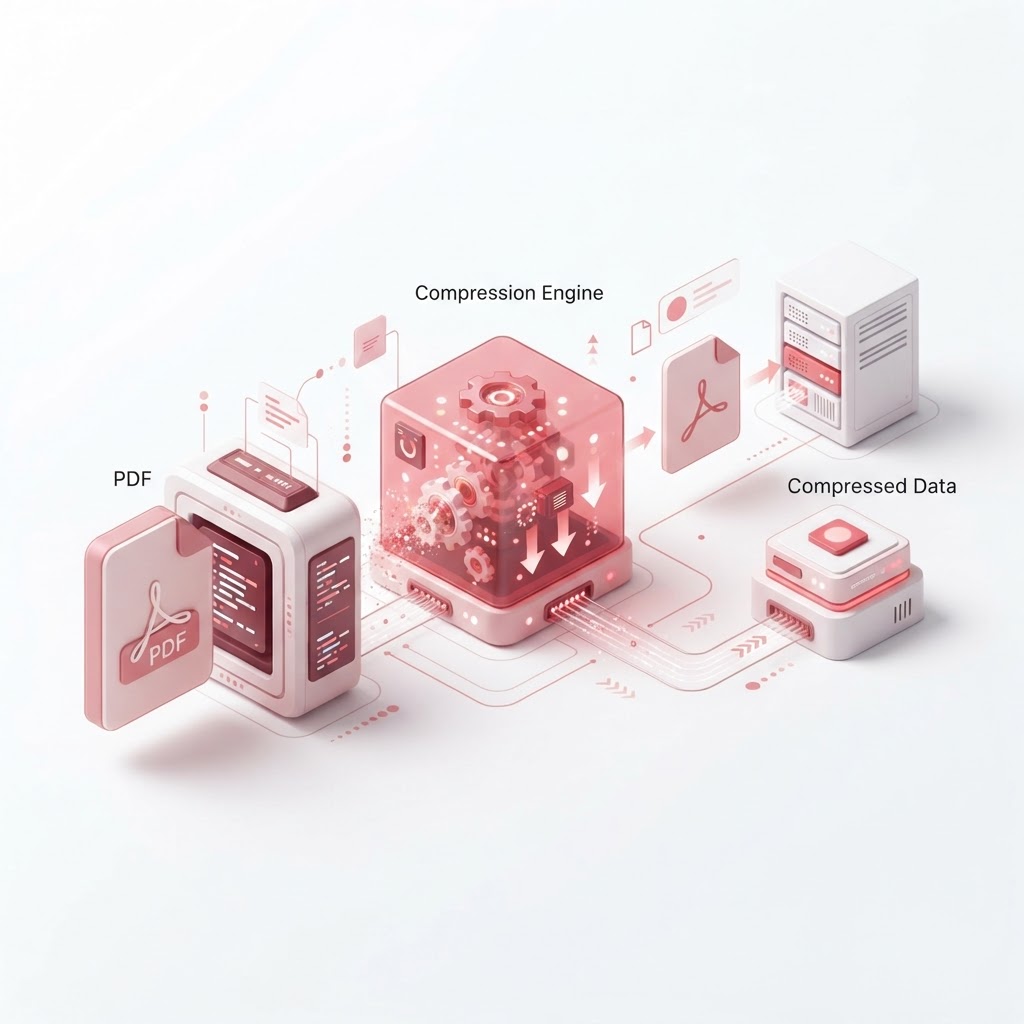
How to Reduce PDF File Size — The 2026 Step-by-Step Guide
In the digital age, sharing documents is a daily necessity. However, large files can become a bottleneck when sending emails, uploading to cloud storage, or submitting web forms. Learning how to reduce pdf file size is an essential skill for professionals, students, and businesses alike. If you have ever struggled with an "attachment too large" error, this guide is for you.
Why Do PDF Files Become So Large?
PDFs are designed to preserve formatting regardless of the device. However, this flexibility comes at a cost. High-resolution images, embedded fonts, and complex vector graphics often balloon the file size. By using CrazyDocument to compress your files, you can strip away unnecessary data while maintaining document integrity.
Step-by-Step: How to Reduce PDF File Size with CrazyDocument
Reducing your file size doesn't require complex software. Follow these simple steps:
- Navigate to the CrazyDocument compress page.
- Click "Upload" to select your document.
- Choose your preferred compression level (High, Medium, or Low).
- Click "Start Compression" and wait a few seconds.
- Download your optimized, smaller PDF.
Can You Reduce File Size Without Losing Quality?
Yes, modern compression algorithms focus on removing redundant information and optimizing image resolution without degrading readability. If you have a document that needs further organization, you might also want to split it into smaller parts to further manage your storage needs.
Best Practices for File Optimization
- Optimize Images: Large JPEGs are often the culprit. Downsampling images to 150 DPI is usually sufficient for screen viewing.
- Remove Embedded Fonts: Embedding fonts is great for consistency but adds megabytes. Flattening your document can help.
- Use Merge Wisely: Sometimes, combining multiple small files is better than one massive, unoptimized document.
Frequently Asked Questions
Is it safe to compress files online?
At CrazyDocument, your privacy is our priority. Files are processed securely and deleted from our servers automatically after processing.
Does compressing change the file text?
No, compression only targets the data structure and image quality, leaving the actual text content untouched.
Can I compress a password-protected PDF?
Yes, but you will need to provide the password to unlock the file for compression first. Use our protect tool if you need to re-secure the file afterwards.
Explore More Tools for PDF Management
Once your file is at the perfect size, you might need additional tools to finalize your project. Explore the full suite at CrazyDocument:
- Need to edit content? Use our editor.
- Have too many pages? Rearrange them easily.
- Need to extract text from a scan? Try OCR.
Start Now
Ready to shrink your documents? Don't let large files slow down your workflow. Head over to our tool page and compress your first file for free today!