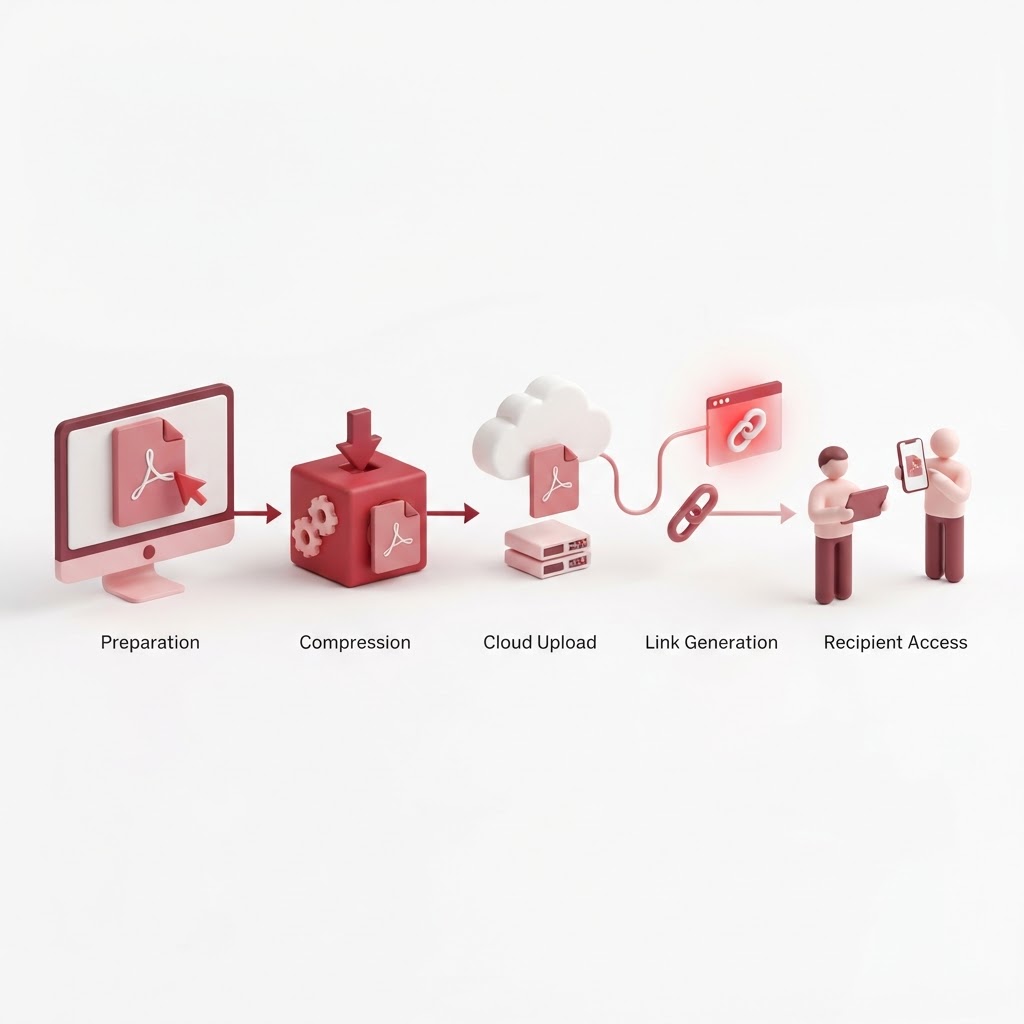
How to Send a Large PDF — The 2026 Step-by-Step Guide
Struggling to get your documents to their destination? If you have ever hit a file size limit when attaching a document to an email, you know the frustration of receiving a "file too large" error. Learning how to send a large PDF doesn't have to be a technical nightmare. Whether you are sending contracts, research papers, or high-resolution design portfolios, there are efficient, professional ways to manage your document delivery without sacrificing quality.
Why PDFs Often Get Blocked
Most email service providers impose a strict limit on attachment sizes, typically hovering around 20MB to 25MB. High-quality images, embedded graphics, and complex document structures can easily push your PDF well beyond these boundaries. Before you attempt to send that file, it is important to understand that size isn't just about storage—it is about deliverability.
The Best Way to Send Large PDFs: Compression
The most reliable method to solve this issue is to use a professional tool to reduce the file size. By using Compress PDF, you can strip out unnecessary metadata and optimize image resolution without losing the readability of your text.
How to Compress Your PDF with CrazyDocument
Follow these simple steps:
- Navigate to the Compress PDF page.
- Upload your file by dragging and dropping it into the dashboard.
- Choose your desired compression level (Balanced or Maximum).
- Click 'Compress' and download your smaller, email-ready file.
How to Split a Large PDF into Manageable Chunks
If your file is exceptionally large because it contains hundreds of pages, compression might not be enough. In such cases, splitting the document is the best approach. Using our Split PDF tool, you can extract specific page ranges or turn each page into a separate document.
This method is particularly useful for:
- Sending specific chapters of a long report.
- Reducing file size by separating a massive archive.
- Sharing individual sections with different team members.
Can I Use the Cloud to Send Large Files?
If you prefer not to alter the file, you can upload it to a cloud drive and share a link. However, this often lacks the professional touch of a direct attachment. For formal business interactions, a smaller, optimized PDF is always preferred over a link that may expire or lose permission settings.
Other Essential Tools for Document Management
Beyond just sending files, CrazyDocument provides a comprehensive suite of features to ensure your documents are ready for business:
| Tool Name | Function | | :--- | :--- | | Merge PDF | Combine multiple files into one document | | Protect PDF | Add password security to sensitive data | | Sign PDF | Add digital signatures to your contracts | | OCR | Make scanned images searchable |
Frequently Asked Questions
Does compressing a PDF lower the image quality significantly?
Not necessarily. Our Compress PDF tool uses advanced algorithms to balance file size and visual clarity, ensuring your document remains professional.
Is it safe to upload my files to CrazyDocument?
Yes, CrazyDocument uses secure encryption protocols. Your files are automatically deleted from our servers after processing, ensuring your data remains private.
Can I send a password-protected PDF via email?
Absolutely. You can use our Protect PDF tool to encrypt your file before sending, keeping sensitive information secure.
What if the file is still too big after compression?
If your file is still too large, consider using the Split PDF tool to break it into smaller parts or use the AI Assistant to summarize content if you only need to convey specific information.
Start Now
Ready to get your document sent? Don't let file size stand in your way. Head over to our Compress PDF page now to optimize your document in seconds and ensure your email arrives exactly where it needs to go.