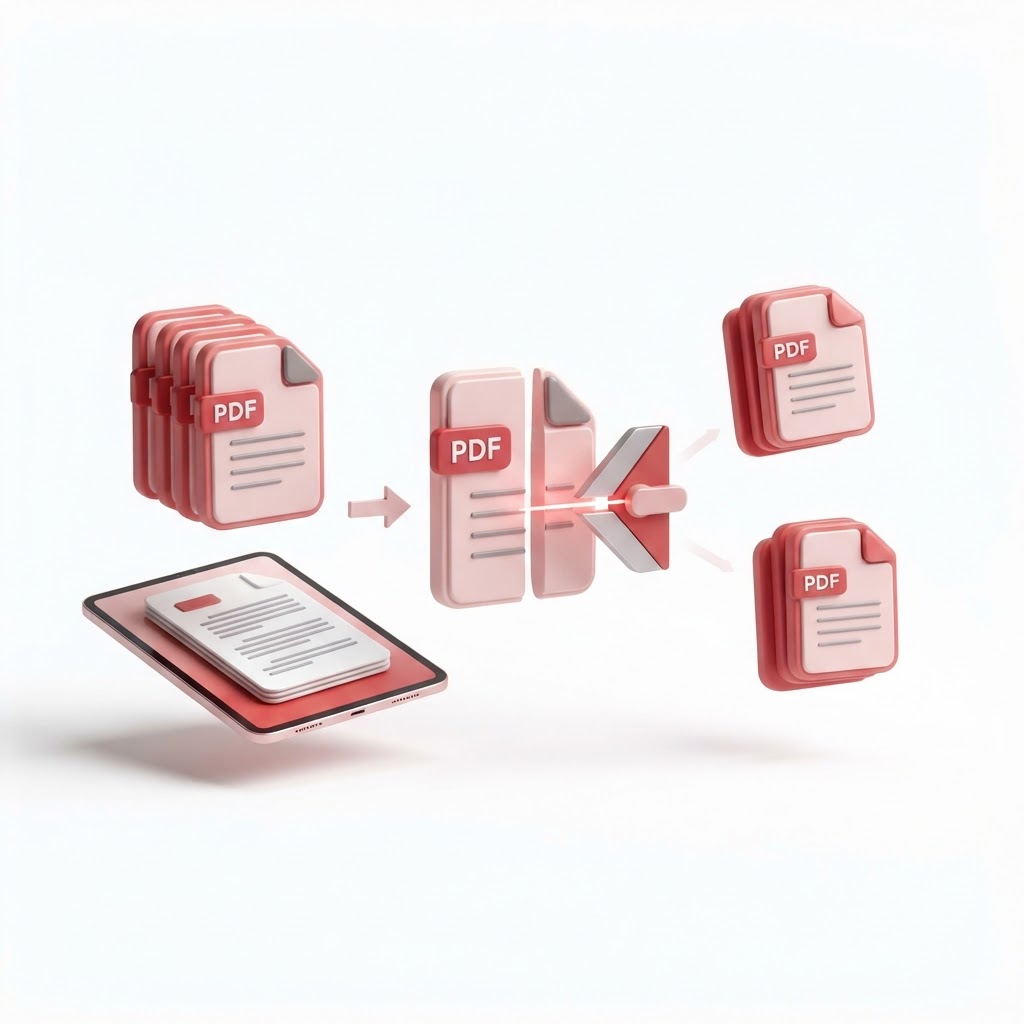
How to Split PDF Pages — The 2026 Step-by-Step Guide
In the modern digital workspace, managing large documents is an inevitable part of the daily routine. If you have ever struggled with a massive document that you only needed a few pages from, you are not alone. Knowing how to split PDF pages is an essential skill that saves time, reduces clutter, and ensures you only share the information that matters.
Whether you are a student, a professional, or someone managing household paperwork, CrazyDocument provides a fast, secure, and user-friendly solution to extract specific content from any PDF file.
Why Would You Need to Split a PDF?
Splitting a PDF is not just about reducing file size; it is about organization and security. Here are the most common scenarios where this becomes necessary:
- Sharing Specific Chapters: Send only the relevant parts of a book or report to a colleague.
- Compliance and Privacy: Remove sensitive pages from a document before sharing it.
- Large File Optimization: Many email services have attachment limits. Splitting a document helps you stay under these thresholds.
- Improving Workflow: Separating invoices, receipts, or legal documents into individual files for easier record-keeping.
How to Split PDF Pages with CrazyDocument: A Simple Walkthrough
CrazyDocument offers a streamlined interface that allows you to perform complex tasks in seconds. Follow these steps to split your files:
- Upload your document: Navigate to our /tools/split tool.
- Select your split method: Choose between extracting every page as a separate file or selecting a specific range of pages.
- Process: Click the split button and let our servers do the heavy lifting.
- Download: Save your new, organized documents to your device or cloud storage.
Beyond Splitting: Managing Your Documents
Once you have split your PDF, you might find that you need to perform additional modifications. CrazyDocument is a comprehensive suite of tools designed to handle every document need:
- Need to combine pages again later? Use our /tools/merge tool.
- Is your file too large even after splitting? Try our /tools/compress utility.
- Do you need to change the order of your pages? Our /tools/rearrange tool is perfect for the job.
- If you need to edit text or images directly, visit the /tools/editor page.
Can I Split PDFs on Mobile Devices?
Absolutely. CrazyDocument is fully responsive and optimized for mobile browsers. You can access the same powerful features on your phone as you do on your desktop. If you frequently scan physical documents on the go, check out our /tools/scanner to capture high-quality images that you can immediately split or edit.
Frequently Asked Questions
Is it safe to split my PDF files online?
Yes. At CrazyDocument, security is our top priority. We use advanced encryption to protect your data during the upload and processing stages, and all files are automatically deleted from our servers after the process is complete.
Does splitting a PDF affect the document quality?
No. Our tool preserves the original resolution and formatting of your document. Whether your file contains high-resolution images or complex text layouts, the quality remains identical to the original.
Do I need to install any software to split my files?
Not at all. CrazyDocument is a web-based platform. You can access all our tools directly from your browser without installing heavy software, plugins, or browser extensions.
Start Now
Ready to get organized? Take control of your documents today by using our professional-grade tools. Visit CrazyDocument Split PDF to get started for free and experience the fastest way to organize your digital workspace.