What Is OCR and Why Do You Need It?
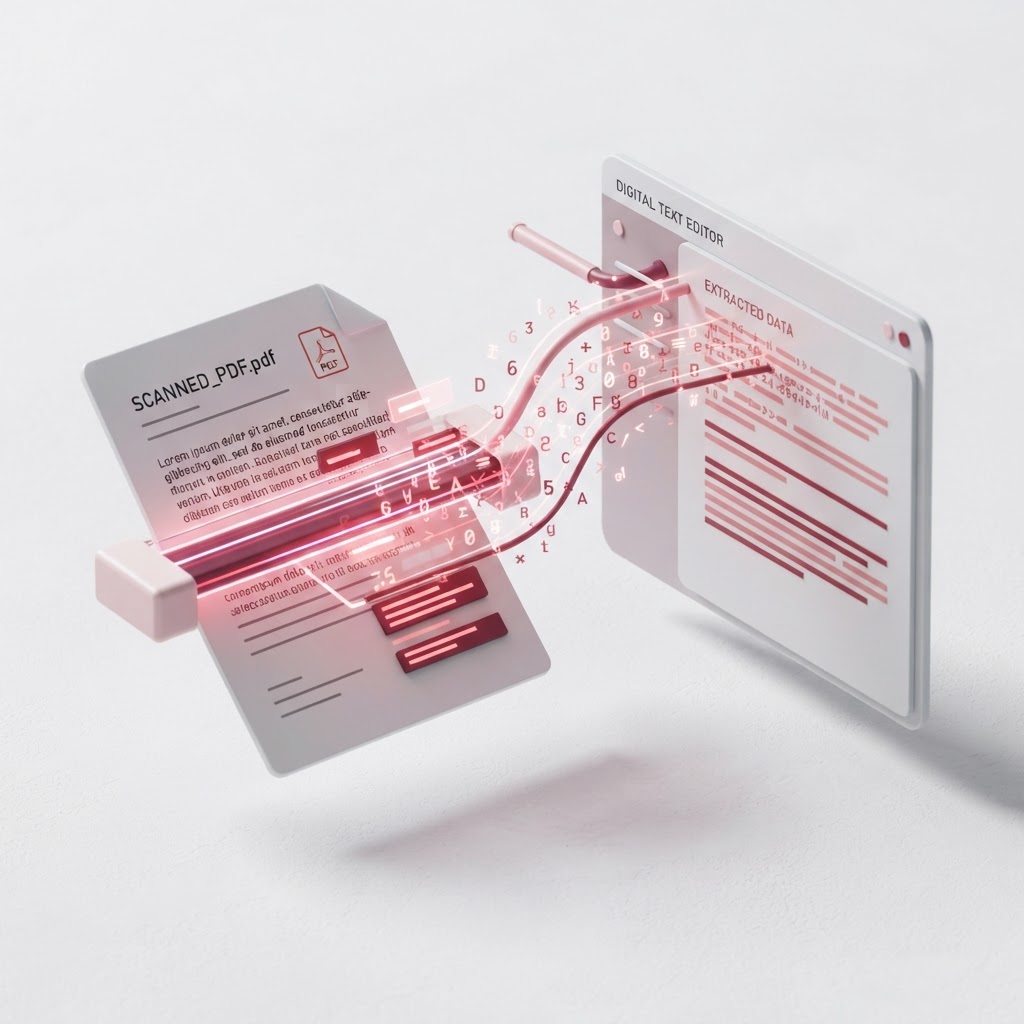
OCR (Optical Character Recognition) is technology that converts images of text into actual, selectable, editable text. If you've ever received a scanned PDF where you couldn't select or search the text — that's a document that needs OCR.
Scanned PDFs are essentially photographs of pages. The text looks like text to your eyes, but to a computer, it's just pixels. OCR analyzes those pixels and identifies the letters, words, and sentences, converting them back into real digital text.
CrazyDocument's OCR tool extracts text from scanned PDFs and images — free, no signup.
How to OCR a PDF (Step by Step)
- Open the OCR tool — Go to CrazyDocument's OCR Tool.
- Upload your scanned PDF or image — Drag and drop or click to browse. Supports PDF, PNG, JPG, and more.
- Click "Extract Text" — OCR processing analyzes each page and identifies the text.
- Review the extracted text — The text appears in an editable panel. Check for any errors.
- Download or copy — Save the text as a .txt file, or copy it to paste elsewhere.
What OCR Can Do
Extract Text from Scanned Documents
Turn image-based PDFs into searchable, selectable text. Perfect for scanned contracts, old documents, and paper records.
Extract Text from Images
Pull text from photos of documents, screenshots, or image files. Great for capturing text from signs, labels, or printed materials.
Make PDFs Searchable
After OCR, you can search within the document for any word or phrase — no more scrolling through 50 pages to find one sentence.
Convert to Editable Formats
Once text is extracted, you can convert it to Word, Excel, or plain text for editing.
OCR Accuracy — What to Expect
Modern OCR is highly accurate for:
- Printed text — 98–99% accuracy for clean, high-resolution scans
- Standard fonts — Excellent recognition of common typefaces
- Multiple languages — Supports English, Spanish, French, German, and many more
Accuracy may be lower for:
- Handwritten text — Depends on legibility
- Low-quality scans — Blurry or skewed images reduce accuracy
- Unusual fonts — Decorative or stylized fonts are harder to recognize
- Complex layouts — Multi-column or table-heavy documents may need manual review
Tip: For best results, start with the highest-quality scan possible. The Smart Scanner tool can help you capture clean, high-resolution scans using your phone camera.
OCR Use Cases
Business & Legal
- Contracts — Make scanned agreements searchable and editable
- Invoices — Extract data from scanned invoices for accounting
- Receipts — Digitize expense receipts for tax records
- Meeting notes — Convert handwritten or scanned notes to text
Education & Research
- Textbook pages — Extract quotes and passages for research
- Handwritten notes — Convert class notes to digital text
- Academic papers — Make scanned references searchable
Personal
- Old documents — Preserve and digitize family records
- Mail & letters — Extract text from correspondence
- Recipes — Convert cookbook scans to searchable text
OCR + Convert = Full Workflow
For a complete scanned-document workflow:
- OCR — Extract text from the scanned PDF using the OCR tool
- Convert — Turn the text-based PDF into an editable Word document
- Edit — Make changes in Word or your preferred editor
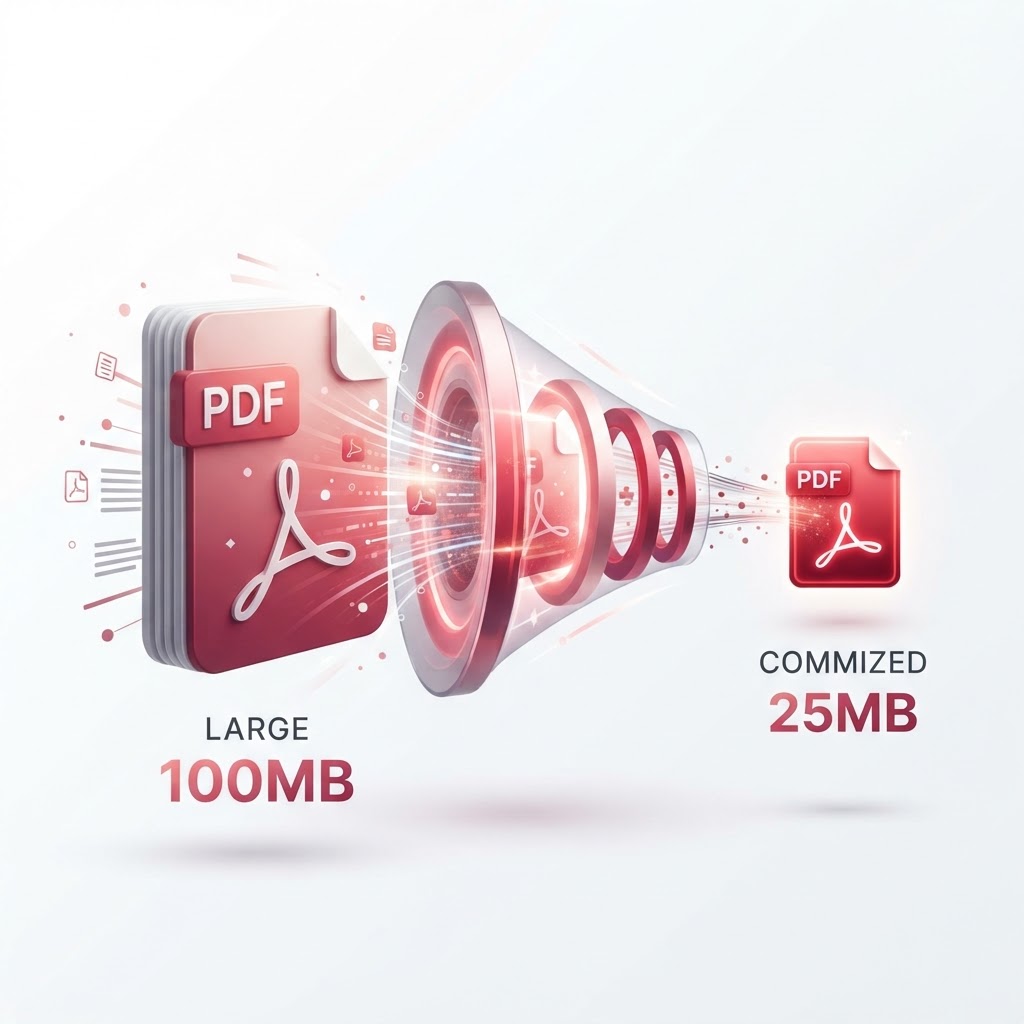
- Compress — Reduce the final file size with Compress PDF
OCR Privately
Your documents are processed securely. After OCR, download your text and the temporary files are removed. No permanent storage, no human review of your content.
Start OCR Now
Ready to extract text? Open the OCR tool and convert your scanned documents to searchable text — free, no signup.
Related tools: Smart Scanner · Convert PDF · Compress PDF