Why Password Protect a PDF?
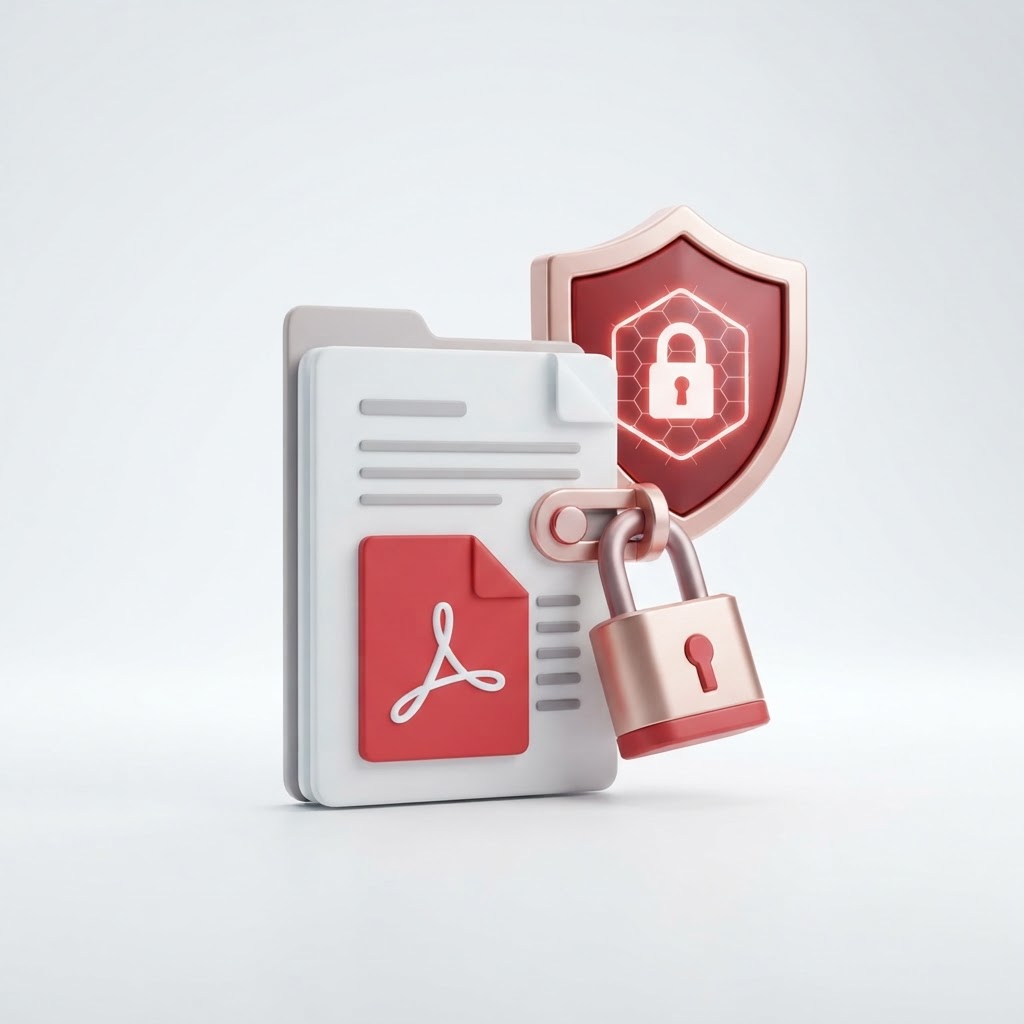
PDFs often contain sensitive information — contracts, financial statements, medical records, legal documents, personal data. If a PDF falls into the wrong hands, the contents are fully readable.
Password protection (encryption) ensures that only someone with the correct password can open and view the document. Even if the file is intercepted, forwarded, or stolen, the contents remain secure.
CrazyDocument password-protects PDFs with 256-bit AES encryption — free, no signup.
How to Password Protect a PDF (Step by Step)
- Open the Protect PDF tool — Go to CrazyDocument's Protect PDF tool.
- Upload your PDF — Drag and drop or click to browse.
- Set a password — Enter a strong password (8+ characters recommended).
- Choose permissions (optional):
- Prevent printing — Block recipients from printing the document
- Prevent copying — Block text and image selection/copying
- Prevent editing — Block changes to the document content
- Click "Protect" — Encryption is applied instantly.
- Download — Save your encrypted PDF. Share it securely with the password.
256-Bit AES Encryption — What It Means
AES-256 (Advanced Encryption Standard, 256-bit key) is the same encryption standard used by:
- Banks — For financial transactions and account security
- Governments — For classified information (NSA-approved)
- Military — For secure communications
- Healthcare — For HIPAA-compliant patient data
It's virtually unbreakable with current technology. A brute-force attack on AES-256 would take longer than the age of the universe with today's computing power.
Set PDF Permissions
Beyond just requiring a password to open, you can control what recipients can do with the document:
Prevent Printing
Recipients can view the document but cannot print it. Useful for confidential documents that should stay digital.
Prevent Copying
Recipients cannot select or copy text and images. Prevents content from being pasted into other documents or messages.
Prevent Editing
Recipients can view but cannot modify the document. Ensures the content stays exactly as you intended.
How to Choose a Strong PDF Password
A weak password defeats the purpose of encryption. Follow these guidelines:
- Length — At least 12 characters (longer is stronger)
- Mix — Combine uppercase, lowercase, numbers, and symbols
- No common words — Avoid dictionary words, names, or dates
- No personal info — Don't use birthdays, phone numbers, or addresses
- Unique — Don't reuse passwords from other accounts
Example of a strong password: K7$mP9!xL2#nQ4
Share the Password Securely
The encrypted PDF is only as secure as how you share the password:
- Don't send the password in the same email as the PDF
- Do share the password through a different channel — phone call, text message, or a separate secure message
- Do use a password manager to generate and share strong passwords
Remove PDF Password (If You Have the Password)
If you have a password-protected PDF and know the password, you can remove the protection:
- Open the Protect PDF tool
- Upload the encrypted PDF
- Enter the current password to unlock it
- Download an unprotected copy
Password Protect PDF on Any Device
The encryption tool runs in your browser on any device — desktop, tablet, or mobile. No software install required.
Password Protect PDF Privately
Your PDF is encrypted in your browser. The password is never transmitted or stored — it's applied locally to the file. After encryption, download your file and the temporary copy is removed.
Start Protecting Now
Ready to secure your PDF? Open the Protect PDF tool and encrypt your document in seconds — free, no signup.
Related tools: Sign PDF · Merge PDF · PDF Editor